
Most commercial crating companies calculate costs, therefor selling prices for plywood and sheet material, by using the required amount plus an additional waste. Your waste % should be an average of actual unused material over a period of time, most often 30/60/90 days depending on your company policy.
By using this method, you get a more consistent ROI versus the additional labor time required to calculate the total actual number of sheets for each job.
However, you may wish to charge full sheet pricing for a specific design, or if it’s your policy to do so.
<<<>>>>
There are two different ways to calculate based on if you want to charge full sheet costs per crate, example: your crates need 1 ½ sheets but you want to charge for 2 sheets per crate, or the other way is to take the total number of sheets needed for your entire design and increase the total number.
An advantage of determining the number of sheets per crate is that if you change the quantity of crates in the design, the sheet totals will also increase based on the new quantity.
By determining for the entire quantity of crates in the entire design, if the quantity of crates change, you will need to recalculate what amount will be needed for a new total sheet count.
Cost Based on Per Crate:
- Designs > Details > Materials > ‘Waste’ should be set to 0%
- There are 32 square feet per sheet of panelboard / foam. Based on the number of sheets you wish to charge for per crate, multiply it by 32
- Take the total square feet needed , subtract the ‘Plus Waste’ value
- Divide the new value by 32 to get the additional quantity of sheets needed
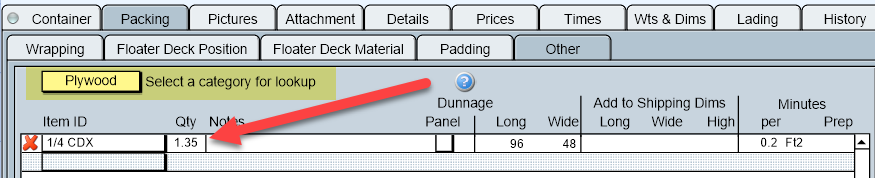
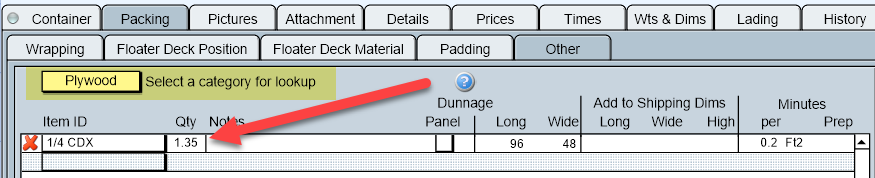
- Enter the new value in Packing > Other by selecting the material category then choosing the material
EXAMPLE:
96 SF = 3 x 32 ( Number of square feet in 3 sheets I wish to charge for)
52.8 SF As shown in the ‘Plus Waste’ field in Crate Pro (this value is per crate and rounded)
43.2 SF = 96-52.8 (difference between what I want to charge for versus the ‘Plus Waste’)
1.35 sheets = 43.2 / 32 (This is the additional amount of sheets to add into Packing > Other)
Cost based on total design quantity:
- Designs > Details > Materials > ‘Waste’ should be set to 0%
- The ‘Unit Quantity’ shows the total sheets required based on the Plus Waste value.
- Subtract the number of sheets you wish to charge for minus the ‘Unit Quantity’
- Enter the new value in Packing > Other by selecting the material category then choosing the material
EXAMPLE:
3 sheets = number of sheets I wish to charge for
1.649 = Unit Quantity value shown in Crate Pro (is based on total quantity of crates)
1.351 = 3 sheets minus 1.649 sheets (total amount to add to meet my requirement)

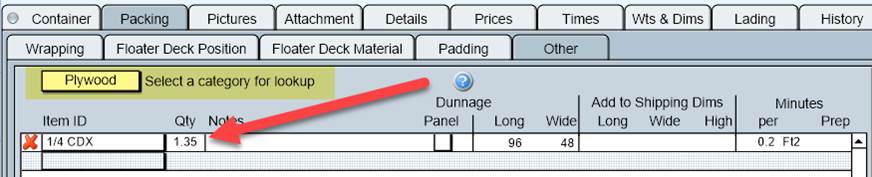
NOTE: If you change the quantity of crates, your Unit Quantity will change to reflect the new total sheets required. You will manually need to recalculate the difference between what is shown in the Unit Quantity field and what you want to charge for.
Unit Quantity is NOT a 'shopping list' : Crate Pro and Yield Optimization: Unit Quantity