
New inventory items and updates to existing inventory items can be imported into Crate Pro 6 by using the Import/Export option. However, some inventory configuration and ongoing management steps may be faster to complete in Crate Pro 6 instead of using a spreadsheet to inmport/export the data.
What may be faster to complete in Crate Pro 6
- Updating Active (items you use) and Inactive (items you do not use) materials from the existing inventory items: Setting Inventory
- Updating your inventory item costs: CP6 offers a very fast method to update your material costs. However, always be aware of the 'unit of measure' you chose as a Tracking Level (purchasing unit of measure) . Fast Update of Costs
- For example: You may select to enter the cost of a Cam Lock by 'each' and nails by 'the box'. When updating costs in a list view, check the column signifying the 'unit of measure' you have selected to enter costs by.
- For example: You may select to enter the cost of a Cam Lock by 'each' and nails by 'the box'. When updating costs in a list view, check the column signifying the 'unit of measure' you have selected to enter costs by.
Important thing to be aware of:
- When exporting you may select to export a single material group, such as only the Lumber or only Fasteners. The export will include all materials in that Category; active and inactive. You're able to change items that are active to inactive here, or visa versa but deleting rows in the spreadsheet will not delete or make them inactive when the data is imported
- Do NOT delete or add columns if you will be importing this file.
- An import can be in a CSV or Excel file format.
- Use the scroll bar to check that the data in the fields matched the header for that field AND that for the item, that the CATEGORY is accurate.
- BEFORE IMPORTING MAKE SURE YOU SELECT TO MAKE A BACKUP OF YOUR INVENTORY
Steps for Inventory Export/ Import
1> Export the file from Crate Pro to ensure you are working with the data in the same order as your version of Crate Pro. Inventory module > Select Import/Export at the top of the window > Select the group or All groups to export > click on Export
- Name the file - I suggest using a date and name to easily identify this files contents
- Save as Type: selecting an Excel file will maintain the column headers. A .CSV file will not include the column headers.
- Check the box "Automatically Open File"
2> Make your adjustments and additions to the spreadsheet as needed to the spreadsheet. Follow the instructions below to ensure columns that require data have that data.
- DO delete blank rows if any exist: You don't want blank row data to be imported as it could cause corruption
3> Use the attached sample spreadsheet to copy/paste into your spreadsheet, or copy/paste the header row into your spreadsheet as a guide.
<<<<<<<<<<<<<<<>>>>>>>>>>>>>>>>>>>.
Using the sample spreadsheet attached:
- The columns highlighted in YELLOW require data entry and can NOT be left blank.
- The columns highlighted in GREEN require data entry based on the CATEGORY selected (column AC)
- The columns highlighted in BLUE are optional for data entry
- DO NOT ENTER OR MODIFY DATA FIELDS IN ORANGE. These are calculation fields that are the result of previous data entered
REQUIRED FIELDS: Do not leave these fields blank
1> B / AddAcct: Enter the login name of the User who is making the changes.
2> G /: Facility ID - Go to Preferences > Company and locate your Facility ID. Make sure this entry matches your Facility ID in your license file
3> H / Key ID - DO NOT MODIFY THIS FIELD OR ENTER INFORMATION FOR NEW ITEMS
4> I / ItemID: - This must be unique from every other inventory entry. DO NOT CHANGE AN EXISTING ITEM ID HERE . New items may be added as additional rows. The Item ID is what appears on the cut lists
5> K / Active: - enter a '1' for items that are active or that will be used in crate design // enter a '0' for items that are you want to move to the Inactive tab
6> AC / Category: - This is the Category the inventory item will be listed in. Suggested to copy/paste from an existing field as this must match exactly as it appears in Crate Pro
7> AD / TL: - Tracking Level. Tracking level is the unit of measure you purchase this material in as you want to enter your cost. It's recommended to use either Level A or Level B only. Level A will always be the unit of measure that appears on your cut lists. Inventory: Tracking Levels / Available on Projects - Setting Units of Measure and Changes in Inventory (video)
- Level A will always be the smallest practical unit of measure to provide the most accurate costing. But Level A is not always the preferred unit of measure to use
- Example: Nails 2 1/4 -- Level A is Each
Level B is by the Box (I select Level B as my tracking level (TL ) because its much easier to enter my cost per box than it is to figure out the cost of each nail
I do not make Level A my tracking level, 'by the box', because instead of my cut lists showing the number of nails to use it would show the value as a fraction of the box
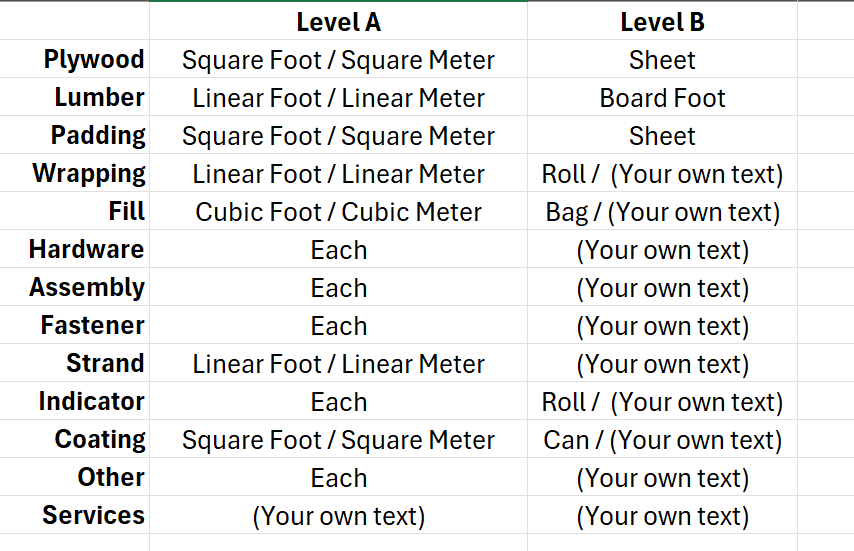
8> AN / Cost: - Your cost for this item based on the unit of measure you set in the Tracking Level. If you're not using CP6 to calculate material costs, you can enter '0'
9> AR / Wt: - Weight of the item based on the selected unit of measure for your Tracking Level. (Not always 'Each')
10> AT / UM: - This value will match the unit of measure you selected for your Tracking Level ( A or B), but where you are able to enter your own text, you may enter any term you wish. Do not modify where there is one option (excluding imperial versus metric)
REQUIRED FIELDS BASED ON INVENTORY GROUP: Please review your export for existing values that are already applied. You may be able to enter this information in each items record later, but information must be entered prior to using the material in a design.
- Column N to R / Thick-Wide-Long-ThickNom - WideNom: - Category Lumber, Plywood, Padding:
- Column N to P is ACTUAL dimensions
- Column Q and R are nominal
- Column S / Waste - ALL ITEMS Value will be zero unless a percentage is entered: Waste % - Determing your waste % on plywood and Waste Factors / Dunnage
- Column T / Time: ALL ITEMS enter time to cut, install or apply a particular amount of this material. It's recommended to review other items in this Category for examples. Times are based on portions of a minute to several minutes based on the Category and item
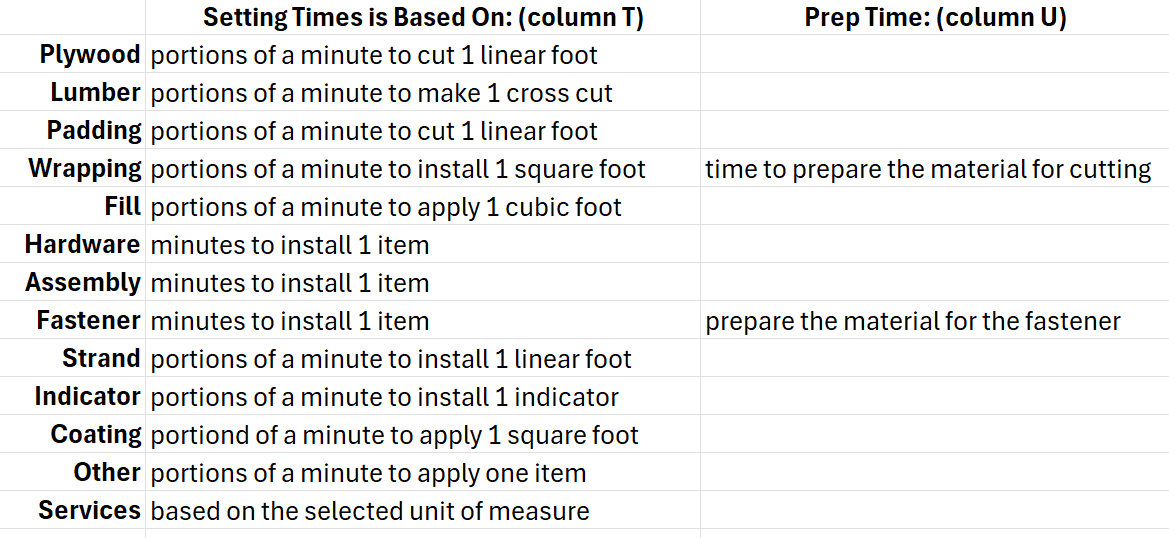
- Column U/ WrapPrepTime: - WRAPPING See above Time required to prepare your Wrapping materials. Time to take off holder, roll it out on table, measure and cut the piece needed, the return the roll for storage
- Column V / FastTimePrep: - FASTENERS Fastener prep time - generally for fasteners such as bolts that require pre-drilling in addition to install time
- Column W / FastSpaceFactor: - FASTENERS Spacing factor for Fasteners that is multiplied by the fastener spacing value in Preferences > Construction tabs for the style famiy. This value tells CP6 how far apart to space that specific fastener, which also determines the quantity of fasteners to use. Suggested to use the suggested values for existing items and enter '1' for newly added fasteners to start
- Column X / AddThickAtCorners: - WRAPPING- when wrapping is applied there is an extra % of thickness that is automatically pushed in the corners around the content item. You add a % of the used material that is counted toward the total used/costs
- Column AE / LumCleat: -LUMBER (timber) - will this material be used as a cleat? Enter '1' for yes, '0' for no
- Column AF / OthrRiser: - OTHER tab - Items that will be used as Risers such as blocks, Donuts and Skid Mates. Be sure to enter a "thickness ' value to get a correct height value when a riser is used.
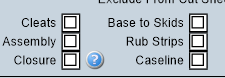
- Column AH to AM / [Fastener usage location] : -FASTENERS - May be completed after inventory is imported BUT these checkboxes must be completed prior to using the fastener. In each field you may enter a '1' if this line item will be used in the capacity.
<<<<<<<<<<<<<<<<<<>>>>>>>>>>>>>>>>>
The remaining fields are optional for data entry in the spreadsheet. ALL data imported can be modified in the Inventory module
Before importing be sure to delete the 2 example fields if you used the sample spreadsheet. Retain the field headers.
Importing: When complete- save the updated file as a CSV and open the Inventory module > Select Import/Export at the top of the window > select Import (Proceed to the Interim table) > Select 'Get Interim Records

Set the 'Files of Type' to Comma-Separated Values (.CSV) - point to the updated file.
- If a pop-up window comes up offering to add/ replace/ update - click away from that window
- ON left side set the drop down to: "Use as Field Names'
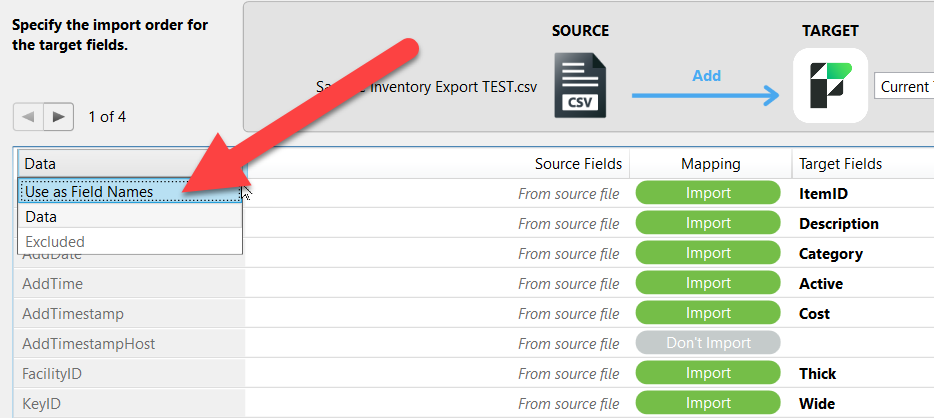
- In Target Fields elect 'Matching Name'
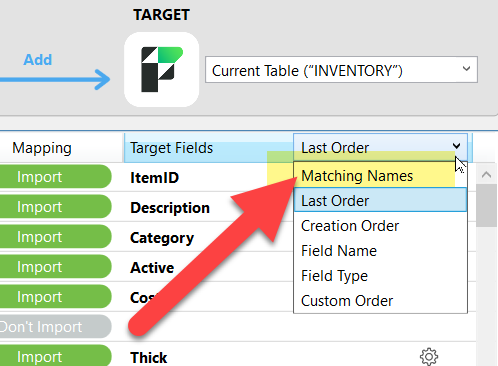
- IMPORTANT - Ensure the Source Fields column matches the Target Fields column : Select IMPORT
- In Crate Pro select "Get Interim Records"
- Ensure NO fields are highlighted in RED - If this occurs make note of the fields that are red, then select to "Clear Interim Records" and 'Return to Inventory" to correct the issues.
- The data will appear in the Interim Table for you to review for errors prior to actual import. This screen will scroll to allow you to see all columns
- Items that are green exist in CP6 and will be updated if changes were made during import
- Items in red do not have the required Item ID field entered and need to be corrected prior to import
- Items in yellow are duplicates of existing items and need to be deleted prior to import
- After any errors are cleared, select "Import These Records" and type IMPORT in the pop up window > OK
- Select to CLEAR interim records